Order handling
Personalized print orders without e-mailing files
Typical handling of a print order: an e-mail asking for the file, a file in the wrong format, another e-mail, a reminder, and finally adding the file to the order by hand. Here the customer gets a designer link, and the file and status return to the order by themselves.
- Trigger
- New order, status change or saved design
- Channels
- Shop, Allegro, Amazon, Empik via Base, Apilo or SellAsist
- Steps
- E-mail link, status, note, notification, wait
- Reminders
- When the customer has not saved a design in time
An order from start to finish
- A customer buys a T-shirt on Allegro. The order comes into Base.
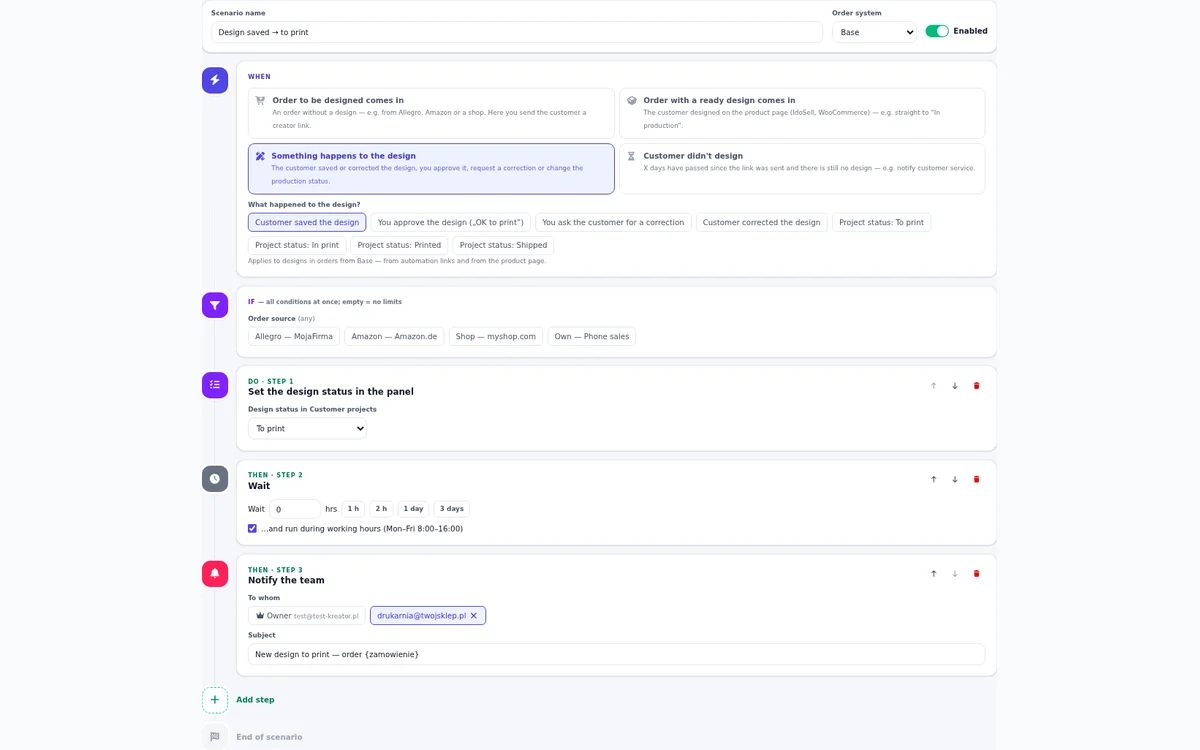
- A scenario in the Automations tab checks the conditions, e.g. source Allegro and status Paid, and sends an e-mail from your mailbox with a personal designer link. The template and quantity come from the order.
- The customer designs and saves. The file link goes into the order note, and the status in Base changes, e.g. to “To print”.
- The print shop is notified right away or during working hours (Mon–Fri 8–16).
- If the customer waits too long, they get a reminder after the set time.
Scenario conditions and steps
A scenario has three parts: WHEN (an order comes in, the status changes, the customer saves a design, the customer does not save a design), IF (source, status, country, amount, delivery method, a word in the notes such as “urgent”) and DO (steps in order: e-mail link, status change, note, e-mail, team notification, wait, stop). Ready scenarios are there to switch on.
The e-mail to the customer goes out in their language: Polish, English, German, Czech, Slovak, Ukrainian or Romanian.
One order in two systems
If orders from an IdoSell shop also flow into Apilo or Base, set that system to “Project link only”. The designer adds the file link once and does not send a second e-mail. You find the design in the panel by the order number from any system.
Frequently asked questions
Does the customer need an account?
No. The link in the e-mail opens the designer right away, with the template from the order. The customer just designs and saves.
What if the customer orders several personalized products?
Each order item with an assigned template gets its own design. The panel shows the order number and the item, e.g. “Order 1234 · 2/3”.
Can I check how a scenario will work first?
Yes. Each scenario has a preview and a test on a chosen order, and the log shows every step: link sent, design saved, waiting, notification.
See also
Try the designer on your own products
30 days free, no card and no automatic payments. Standard costs 58 EUR net per month, Premium 80 EUR. One shop and one order system are included.