Gifts, boxes and merchandise printing
Personalized gifts, boxes and merchandise without designing from scratch
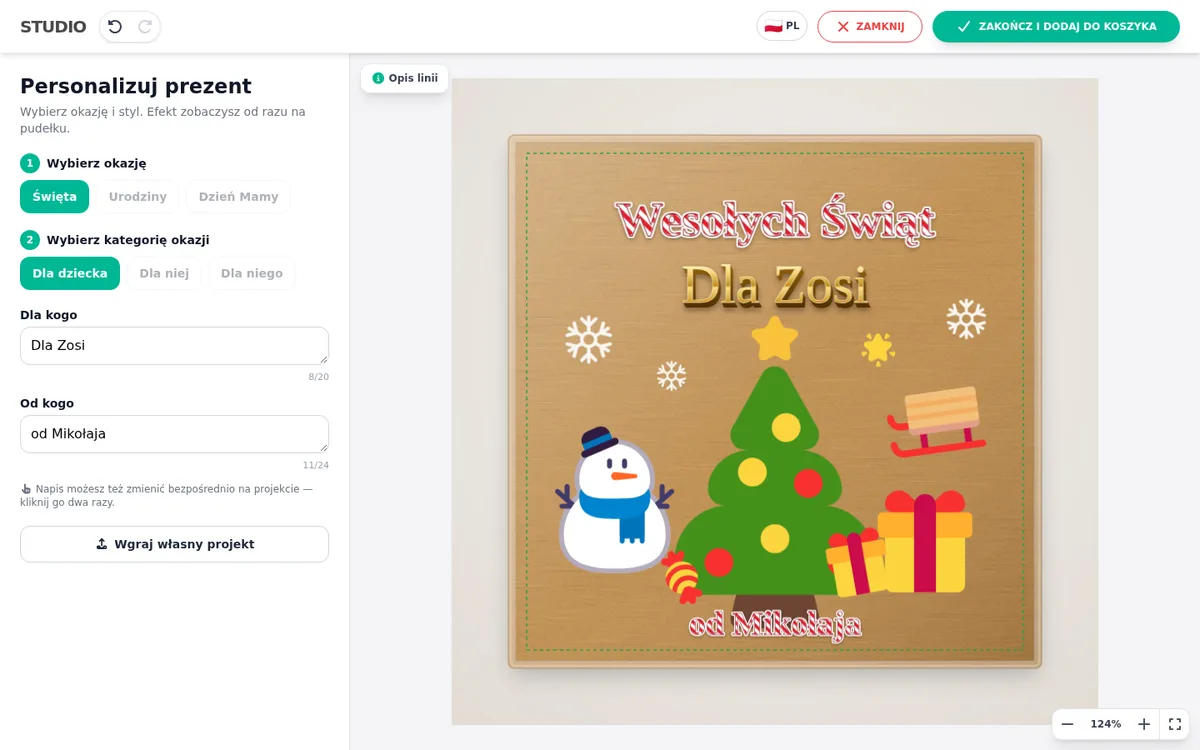
People buying a gift rarely want to design. In the simple designer they pick an occasion and a category, e.g. Birthday › For kids, instantly see a ready design on a photo of the box or mug and change only the name or dedication. The shop gets a print file exactly like the preview.
- For
- Boxes, mugs, cushions, plaques, gift T-shirts
- Choice
- Up to 4 steps with options, e.g. occasion › recipient
- What the customer changes
- Only marked texts, with a label and a character limit
- Display
- Full screen or a window over the product page: small, medium or large
What the customer sees
- On the product page they click the designer button.
- On the left they pick an occasion, then a category. Options without a design are greyed out, so there are no empty choices.
- On the right they instantly see a ready design on the product photo.
- They type their text in a field such as “Name and age”, or double-click the text on the design.
- They click “Finish and add to cart”.
On a phone the designer fills the screen: preview at the top, options below. The back button or gesture closes the designer instead of leaving the product page.
A small window instead of full screen
The simple designer can open in a window over the dimmed shop page, so the customer keeps the product page in view. You choose the size in the personalization mode settings:
- Small: 900 × 640 px
- Medium: 1100 × 760 px
- Large: 1280 × 860 px
On smaller screens the window shrinks automatically. It closes only with the ✕ button. Clicking the background does nothing, so typed text is never lost. You can turn off the designer's top bar: ✕ and Help then sit in the corner of the preview, and “Finish and add to cart” below the options.
Preparing designs in the panel
- In Templates, edit the product template and turn on “Personalization mode (simple designer)”. Add steps and options, e.g. Birthday, Christmas, Mother's Day. Options of the second step are attached to options of the first, e.g. under Birthday: “For kids”, “18th”, “Funny”.
- In Project designs, create designs and assign them to options in the Preset tree. A design assigned only to an occasion fits each of its categories.
- In the design, tick “Customer can change this text (personalization)” in the text properties, with a field label and a character limit.
You create designs in the same designer your customers use, with the same tools: 38 fonts, text on an arc, 18 text effects (including gold, chrome, neon and glitter) and over 5000 elements.
Boxes and printing on merchandise
A Mockup template shows the design on a photo of your product: a box lid, a mug, a bag or a cushion. You mark the print area with a rectangle and enter its width in millimetres. A product can have several sides, e.g. lid and side or both sides of a mug, each with its own area.
Merchandise with an unusual shape uses the Winder / shape template: you upload a mask and the print file is cut to the shape. When a product has variants, such as mug colour or box type, each shop option can have its own photo.
Only the print goes to production, at the size of the area, as a PDF or a 300 DPI PNG with transparency (Premium plan). The product photo is not part of the file.
When the customer wants more
You can keep the “Upload your own design” and “Generate with AI” buttons. They open the full designer, where the customer can upload a photo, remove its background or generate an image from a description. The window then expands to full screen.
Gifts sold on Allegro or Amazon can be personalized too. After the purchase the customer gets an e-mail with a link to the designer, via Base, Apilo or SellAsist. Such a link always opens the designer full page. More: personalization on marketplaces.
Frequently asked questions
How is the simple designer different from the full one?
The customer does not design from scratch. They pick options in steps, get a ready design and change only the texts you mark. The full designer is available with the “Upload your own design” button if you keep it.
Can the designer open in a small window?
Yes. In the personalization mode settings you choose Full screen or Window, sized Small (900 × 640 px), Medium (1100 × 760 px) or Large (1280 × 860 px). On a phone the designer always fills the screen.
What if the template has no designs yet?
The designer then works as usual, full screen, even when set to Window. The panel warns about it on a template without designs.
Will the print file match the preview?
Yes. The file is made from the same design the customer sees on the product, with bleed and at the size of the print area.
See also
Try the designer on your own products
30 days free, no card and no automatic payments. Standard costs 58 EUR net per month, Premium 80 EUR. One shop and one order system are included.